
Generate workflow · private text-to-image
Cara Memakai Generator AI Tanpa Batas untuk Teks-ke-Gambar
If you need a private unrestricted AI generator workflow that starts from a text prompt—and only adds reference photos when they help—this guide shows how to brief the shot, pick a look, and review the still before you spend another run.
This is a how-to for the Unrestricted path on Lumi Arts. It does not promise every mature request is accepted, and it does not freeze credit prices. The live tool always shows the estimate before you generate.
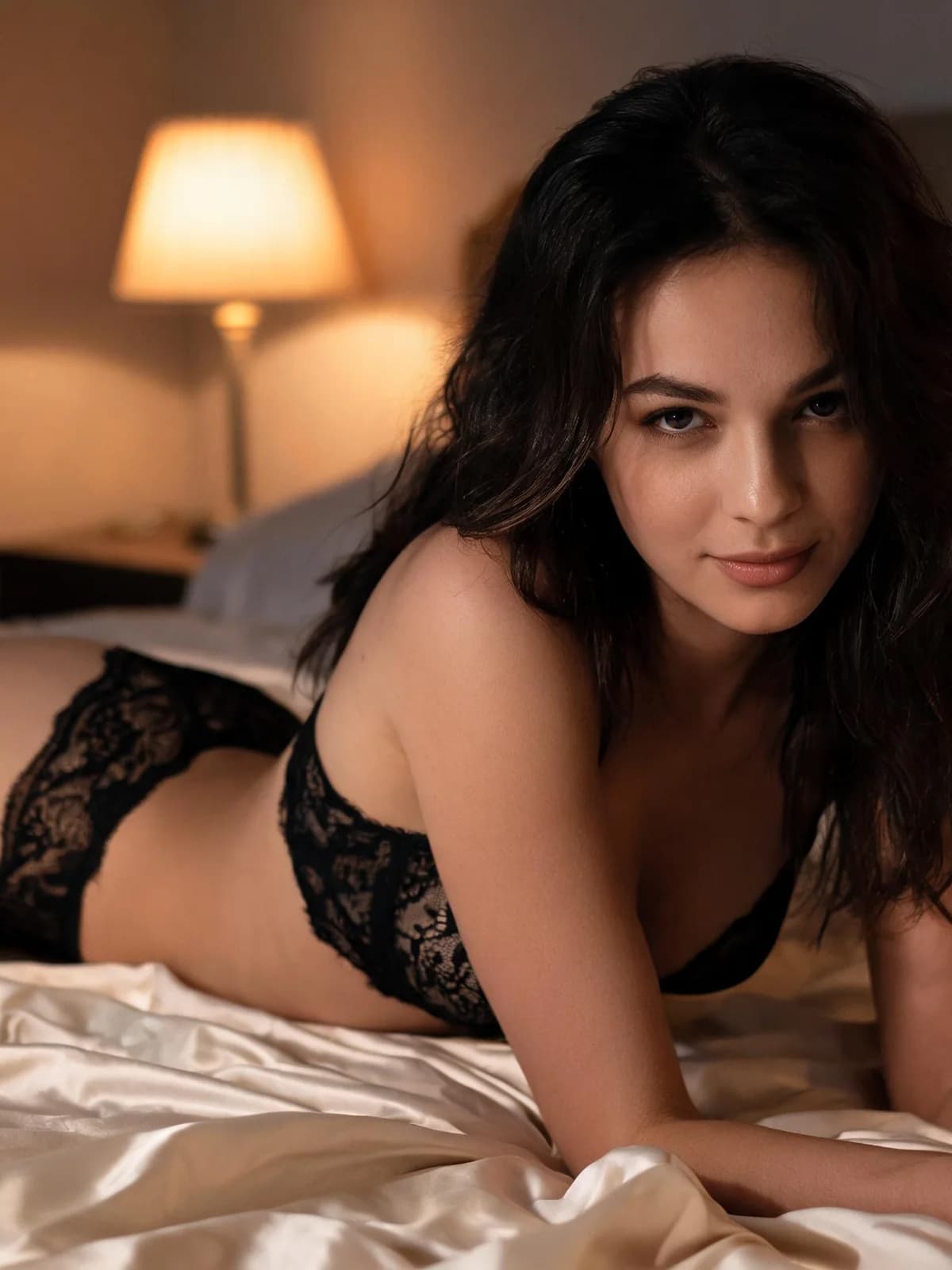
Quick answer: how to run one clean generate pass
Treat the first run as a controlled brief, not a lottery ticket.
- 01Write one adult scene brief: subject, wardrobe, shot size, light, and what to avoid.
- 02Add optional reference photos only when you need face, body, or wardrobe continuity.
- 03Pick a preset look (Portrait, Boudoir, Film, Studio, or Editorial) that matches the job.
- 04Confirm image output and the on-screen credit estimate, then generate once.
- 05Review face, hands, wardrobe, and artifacts before rewriting more than one line.
What you need before you open Generate
The Unrestricted tool is prompt-first. References are optional; the brief is not.
A clear text description. This path is built for private adult text-to-image work.
Up to two reference images when you must lock a face, body read, or garment direction.
Default image generation at the quality tier shown in Studio. You can switch to video when the same idea needs motion.
18+ only. Use authorized adult references. Minors and age-ambiguous subjects are blocked.
Step 1: Write a brief the model can fail against
Start with one adult subject and one job. A strong unrestricted AI image prompt names the person, wardrobe, framing, lighting, and the mistakes you refuse—readable logos, extra fingers, wrong age cues.
Keep stable facts in one block and the current shot in another. That split makes the next edit cheaper: you change the failing line instead of rewriting the whole paragraph.
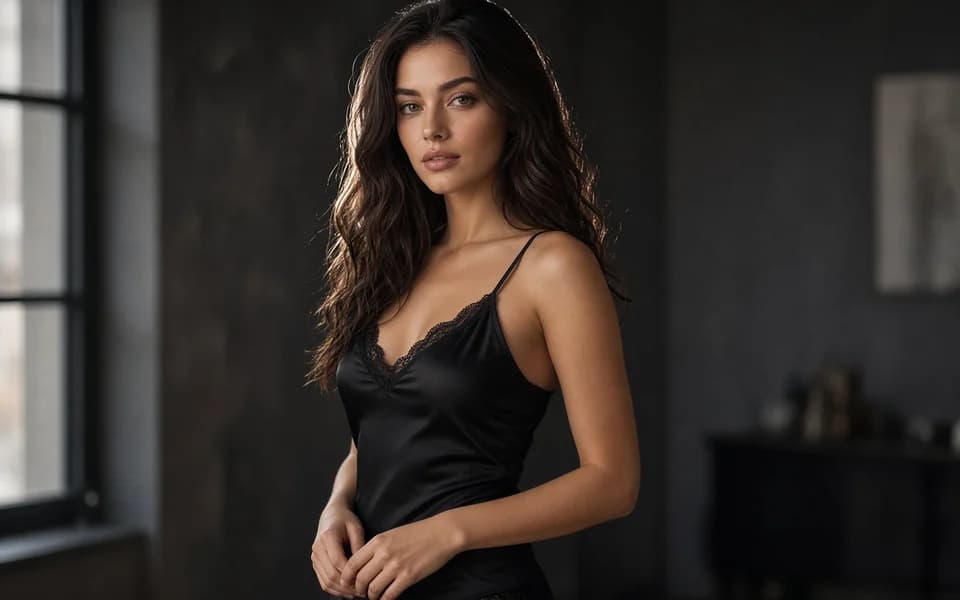
Prompt blocks that travel well
Use short labeled lines for character, wardrobe, shot, and art direction. If the selected model exposes a negative field, put only true rejects there—do not hide the real brief inside negatives.
Step 2: Add references only when they earn their slot
Skip uploads when text already defines the adult character. Add a reference when you need the same face across a set, a garment that text keeps missing, or a body read you already approved.
Two weak references are worse than none. Prefer one sharp, well-lit adult photo over a collage of crops.
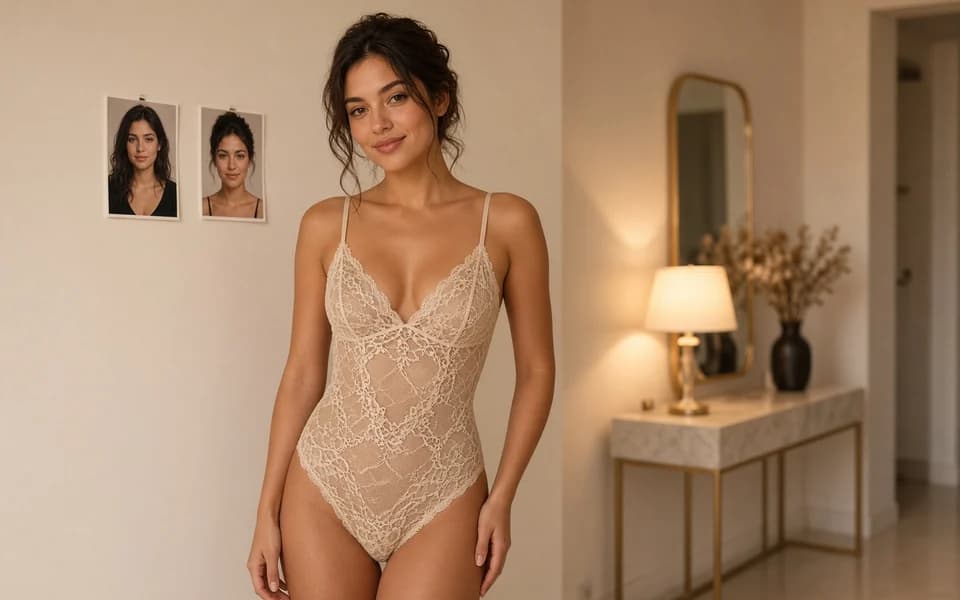
Step 3: Choose the look, confirm cost, generate once
Presets bias lighting and finish; they are not a second prompt language. Match Portrait for clean head-and-shoulders, Boudoir for soft intimate light, Film for grain and contrast, Studio for controlled keys, Editorial for stylized fashion framing.
Read the credit estimate on the button before you start. Failed runs follow the product refund rule shown in Studio. Do not assume a free unlimited queue.
Step 4: Iterate one failure at a time
Save the candidate with its visible settings. Change only the line tied to the first clear failure—hands, wardrobe edge, light direction, or composition.
When you need a specialized transformation instead of a fresh scene, leave Generate and open the matching tool workflow (lingerie, clothes changer, face swap) rather than overloading one prompt.
Presets that actually change the job
Pick the preset that matches the deliverable, then keep the text brief stable.
| Preset | Gunakan saat |
|---|---|
| Portrait | You need a clean adult head-and-shoulders or upper-body still. |
| Boudoir | Soft intimate light and fabric read matter more than hard studio edges. |
| Film look | You want contrast, grain, and a cinematic still rather than catalog light. |
| Studio | Controlled key light and a commercial product framing. |
| Editorial | Fashion-led composition with stronger stylization. |
Review checklist before you rewrite
A second run is only useful if you can point to the first failure.
- 01Subject reads clearly adult; no age-ambiguous cues.
- 02Face, hair, and wardrobe match the brief you saved.
- 03Hands, limbs, and garment edges hold up at full resolution.
- 04No unwanted text, logos, or duplicated accessories.
- 05Lighting direction still matches the preset you chose.
Limits, privacy, and honest product boundaries
Unrestricted does not mean unbounded. Safety systems still block minors, illegal sexual content, and other disallowed requests. Private by default means there is no public feed of your runs—not that nothing is ever processed by infrastructure.
Model menus, durations, and prices move. Trust the live Studio labels. For general image-suite navigation see AI Image Generator; for adult-positioned image landing context see NSFW AI Image Generator.
Only upload photos you are authorized to use. Real-person intimate misuse, celebrity non-consent workflows, and minor content are prohibited under the Acceptable Use rules.
FAQ: unrestricted generate workflow
No. Text can be the only input. Add references when continuity needs them.
It means adult-oriented generation with fewer generic creative filters—not a promise that every request is allowed or that moderation never applies.
One adult subject, wardrobe, shot size, light, and a short avoid list. Save that brief before you edit.
Yes. Switch output to video in the tool when you need motion, then re-check the on-screen estimate because video is billed differently from stills.
In your private workspace and task history—not on a public gallery page.
When the job is really face swap, garment try-on, lingerie restyle, or dual-person motion. Specialized tools keep the brief narrower.
No. Always read the estimate on the generate control before you run.
Langkah berikutnya
Open the unrestricted generate workspace
Take the brief you wrote here into the live tool. Confirm the credit estimate, generate once, and review before you rewrite.