
Image workflow · panels and dialogue
डायलॉग और पैनल के साथ AI कॉमिक पेज कैसे बनाएँ
To create AI comic pages that keep dialogue readable, write the script in quotes first, pick a panel count that matches the beat count, and only then add optional character references.
This guide is about multi-panel comic pages with lettering. It is not the anime still review guide, and it is not free-form unrestricted single-image generation.
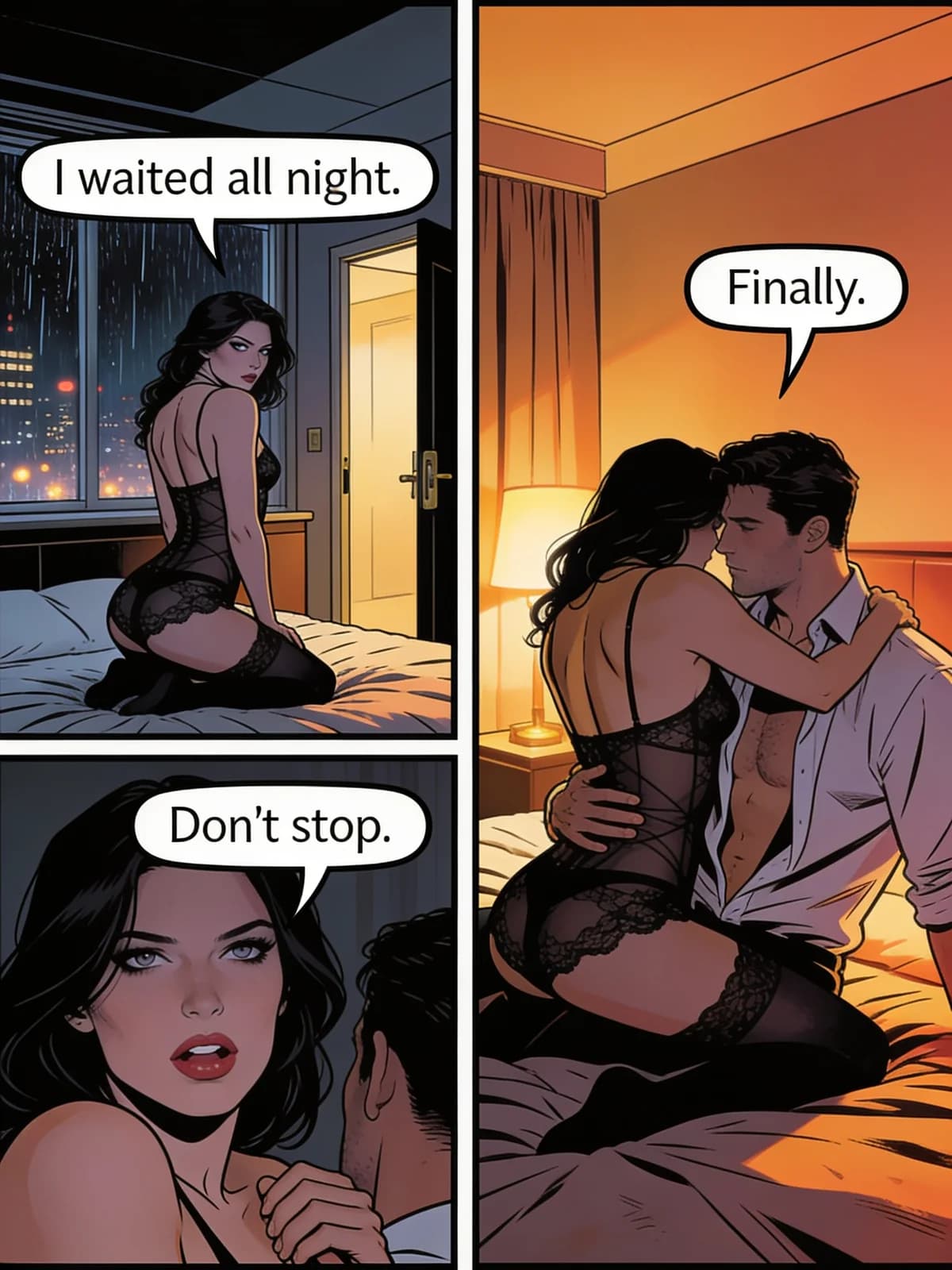
Quick answer: script → panels → page
Panel count should equal story beats, not decoration.
- 01Write the scene action and put spoken lines in quotes.
- 02Choose Single, Two, Three, Four panels, or Detail grid.
- 03Optionally attach character references for face continuity.
- 04Generate the page, then check bubble text and panel order.
- 05Rerun with one change: dialogue, panel count, or a reference.
What you need for a comic page
Prompt is required. Character uploads are optional anchors.
Action lines plus quoted dialogue the lettering can lift.
Single panel through four-panel story or a detail grid.
Up to two reference images to stabilize adult character looks.
Image page by default; keep the workspace private.
Step 1: Write a script the bubbles can quote
Put each spoken line in quotation marks on its own beat. If a panel has no dialogue, say so—silent reaction panels still need an action line.
Name adult characters consistently. Swapping nicknames mid-script is a common reason faces drift across panels.
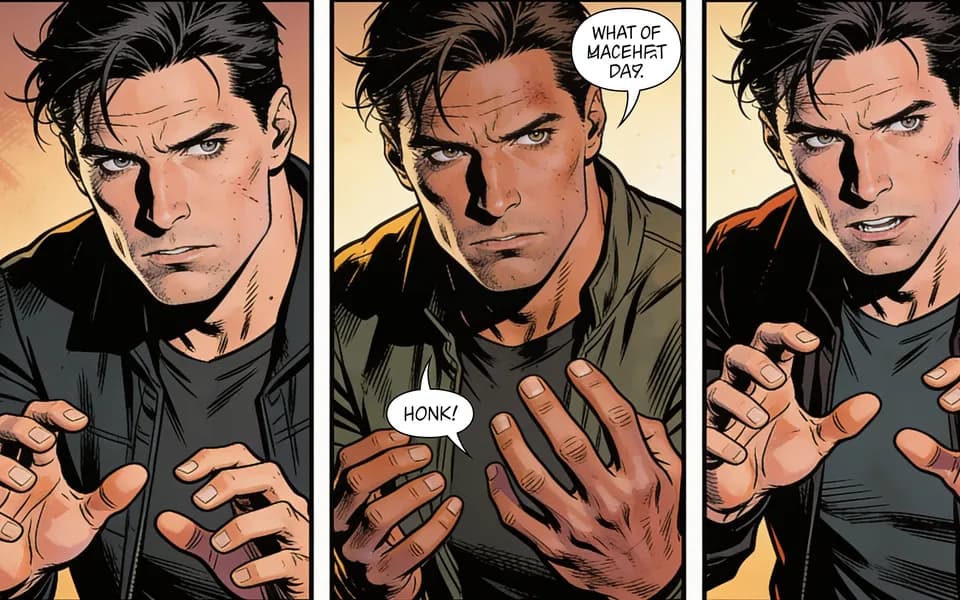
Step 2: Match panel count to beats
One joke landing → single panel. Setup/punchline → two. Escalation → three or four. Detail grid is for wardrobe or expression sheets, not a full scene dump.
Do not cram six beats into two panels and hope lettering saves it.
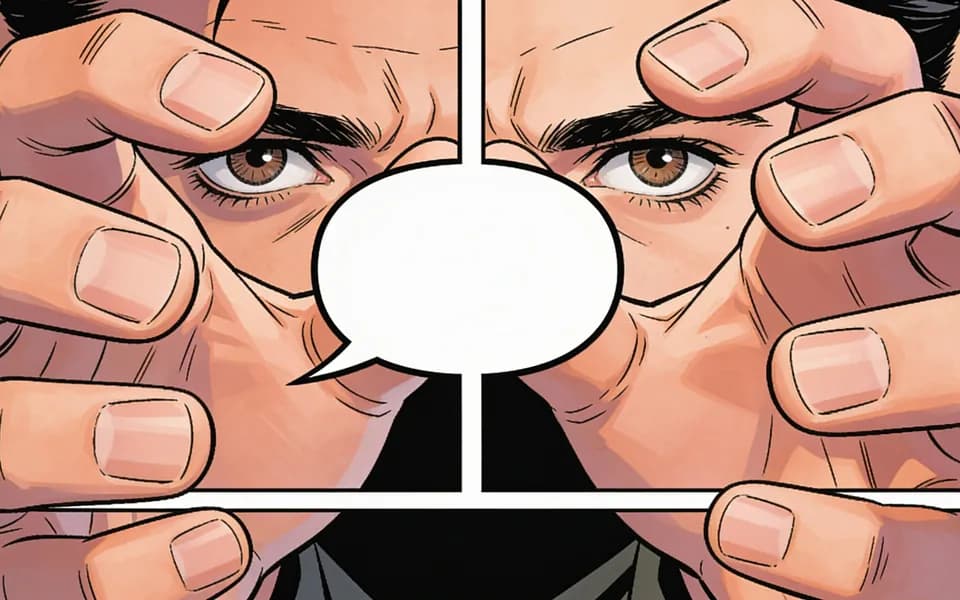
Step 3: Optional character locks, then generate
Attach character references when the same adults must recur across a short set. Keep house style notes light—the tool already applies a comic finish.
Generate once, then read the page in panel order. Check that bubbles point to the right speaker and that text did not melt into the art.
Step 4: Build a short series without resetting faces
Reuse the same character references and name spellings. Change only the new beats. For non-comic illustration review technique, see the anime art generator guide.
Comic panel presets
Choose structure before style adjectives.
| प्रीसेट | कब उपयोग करें |
|---|---|
| Single panel | One beat, poster-like payoff, or cover moment. |
| Two panels | Setup and punchline, or question and answer. |
| Three panels | Short escalation with a clear final reaction. |
| Four panels | Compact story page with room for two dialogue peaks. |
| Detail grid | Expressions, wardrobe, or prop sheets rather than plot. |
Comic page review checklist
Read it like a reader, left-to-right, top-to-bottom.
- 01Quoted lines appear as readable lettering.
- 02Panel order matches the script beats.
- 03Character looks stay stable if references were provided.
- 04Hands, faces, and bubble tails stay clean at full size.
- 05No accidental extra text or logo noise in the art.
Limits
Lettering quality varies with script clarity. Tiny mumbled lines and five speakers in one panel fail more often.
Adult-only content rules still apply. Private workspace storage is not a public comic host.
For open-ended single stills without panels, use the unrestricted generate workflow instead.
FAQ: AI comic pages
Write spoken lines in quotes. Clear speaker turns help the page lettering.
One panel per beat. Do not overload a two-panel preset with a six-beat scene.
Yes—reuse references and identical name spellings.
You can steer wardrobe and setting; the tool still applies a comic house finish.
No. Results stay in your private workspace unless you export them yourself.
Minors, illegal sexual content, and other disallowed categories under Acceptable Use.
Usually no. Use unrestricted generate or Image Studio for single stills.
अगला कदम
Open the AI comic workspace
Paste the quoted script, pick a panel preset, and generate one page before you expand the series.