
Comic page workflow
How to Create AI Comic Pages with Dialogue and Panels
Create AI comic pages with clear dialogue and consistent characters. Write the script first, match panels to story beats, and review one page before extending the series.
Plan comic panels, dialogue, character references, and private exports.
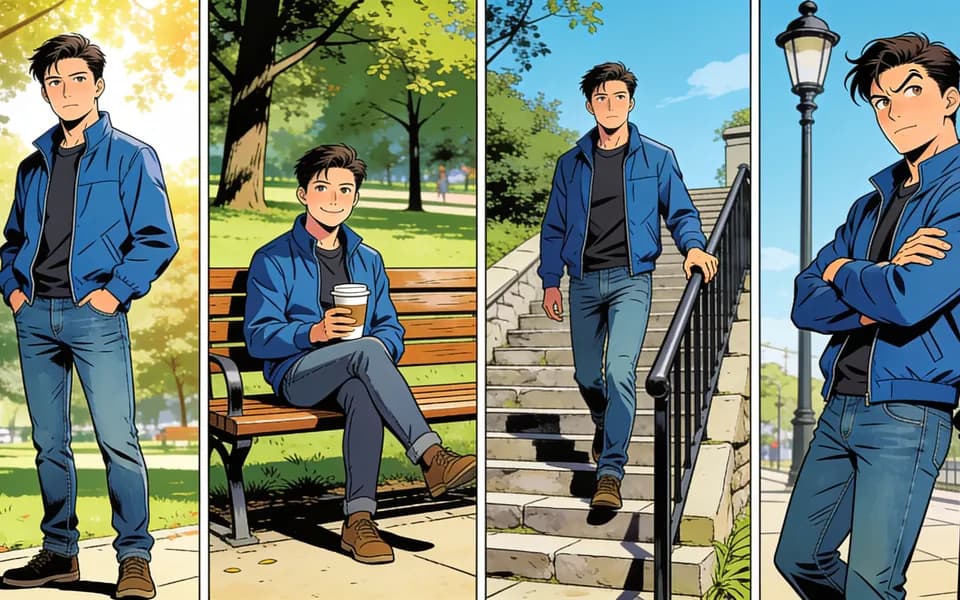
Quick answer: script → panels → consistent page
Panel count should equal story beats. Character locks beat style adjectives.
- 01Write scene action and put spoken lines in quotes; name each adult the same way every time.
- 02Choose Single, Two, Three, Four panels, or Detail grid to match beats—not decoration.
- 03Attach up to two authorized adult character references when faces must recur (comic strip or multi-page).
- 04Generate one page, then check bubble text, panel order, and identity before a second credit.
- 05Change only one detail per rerun.
What you need for a comic page
Prompt is required. Character uploads are optional anchors for continuity.
Put each spoken line in quotation marks on its own beat. If a panel has no dialogue, say so—silent reaction panels still need an action line.
Single panel through four-panel story or a detail grid.
Up to two authorized adult reference images to stabilize looks across panels or pages.
Image page by default in a private workspace—not a public comic host.
Step 1: Write a script the bubbles can quote
Put each spoken line in quotation marks on its own beat. If a panel has no dialogue, say so—silent reaction panels still need an action line.
Use the same character names throughout the script.
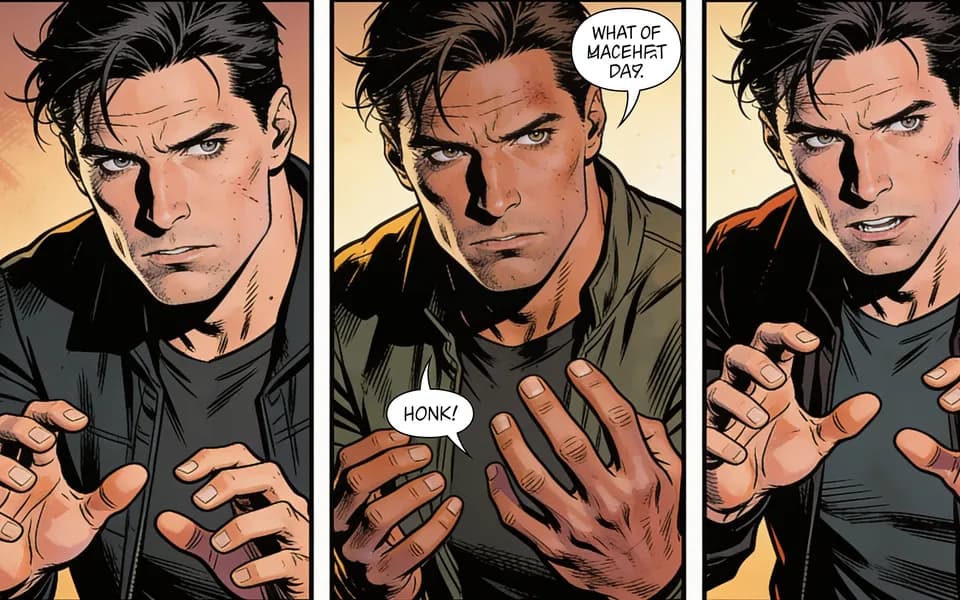
Step 2: Match panel count to beats
One joke or payoff → single panel. Setup/punchline → two. Escalation → three or four. Detail grid is for wardrobe or expression sheets, not a full scene dump.
Match panel count to story beats; avoid crowding several actions into one panel.
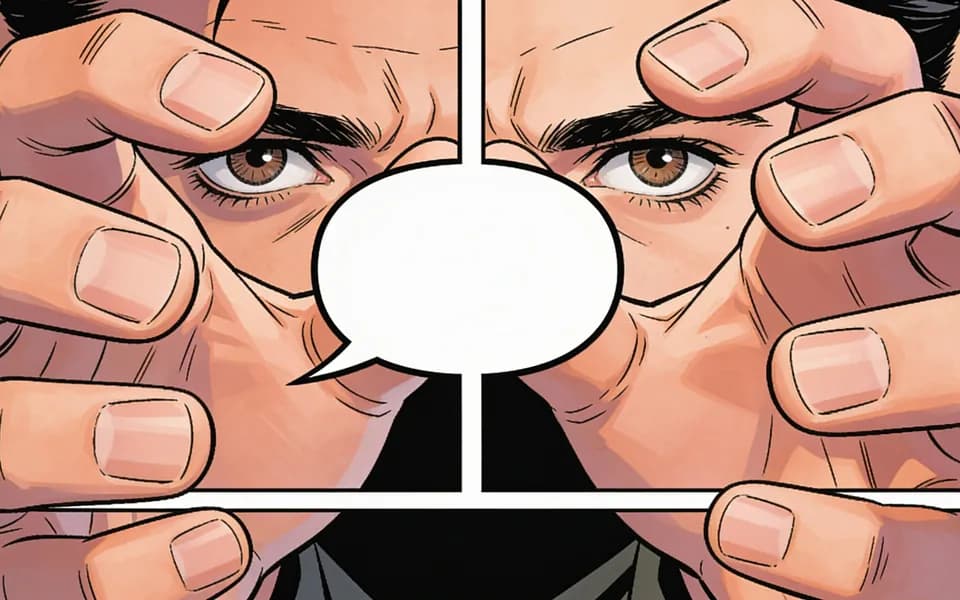
Step 3: Optional character locks, then generate
Attach character references when the same adults must recur across a short set. Keep house style notes light—the tool already applies a comic finish.
Generate once, then read the page in panel order. Check that bubbles point to the right speaker and that text did not melt into the art.
Step 4: Build a short series without resetting faces
Reuse the same character references and name spellings. Change only the new beats. For non-comic illustration review technique, see the anime art generator guide.
Keep the same references and character names across pages. Change one detail per rerun.
Comic panel presets
Choose structure before style adjectives.
| Preset | Use it when |
|---|---|
| Single panel | One beat, poster-like payoff, or cover moment. |
| Two panels | Setup and punchline, or question and answer. |
| Three panels | Short escalation with a clear final reaction. |
| Four panels | Compact story page with room for two dialogue peaks. |
| Detail grid | Expressions, wardrobe, or prop sheets rather than plot. |
Comic page review checklist
Read it like a reader, left-to-right, top-to-bottom.
- 01Quoted lines appear as readable lettering.
- 02Panel order matches the script beats.
- 03Character looks stay stable if references were provided.
- 04Hands, faces, and bubble tails stay clean at full size.
- 05No accidental extra text or logo noise in the art.
Limits
Lettering quality varies with script clarity. Tiny mumbled lines and five speakers in one panel fail more often.
Upload only authorized photos. Review the page before exporting it.
How to keep characters consistent across panels
Panel-to-panel drift usually starts with weak locks, not weak adjectives. Fix identity before you rewrite the whole script.
Same refs, same spellings
Reuse the identical adult reference files and character names on every page. New selfies mid-series are a common reset.
One variable per rerun
Keep the same references and character names across pages. Change one detail per rerun.
Read identity at full size
Thumbnails hide hairline, eye shape, and body proportion errors. Zoom panels in order before you approve a series page.
- 01Max two strong references beats five conflicting photos.
- 02Keep wardrobe facts fixed when the job is continuity, not a clothes change.
Privacy, consent, and authorized adult use
Upload only authorized photos. Review the page before exporting it.
No minors. No non-consensual intimate likeness of real people. No celebrity nude pipeline. Read the live credit estimate before generate, and review the Acceptable Use Policy.
- 01Prefer fictional adults or authorized references with clear intended private use.
- 02If the job needs motion (kiss/hug) instead of lettered panels, switch to the matching video tool.
FAQ
Only authorized adult photos you have rights to use. Non-consensual intimate edits and misuse of someone else’s likeness are out of scope.
Write spoken lines in quotes. Clear speaker turns help the page lettering.
One panel per beat. Do not overload a two-panel preset with a six-beat scene.
Yes—reuse the same authorized references and identical name spellings; change only the new beats.
Upload only authorized photos. Review the page before exporting it.
Quoted lines appear as readable lettering. Panel order matches the script beats. Character looks stay stable if references were provided. Hands, faces, and bubble tails stay clean at full size. No accidental extra text or logo noise in the art.
Next step
Open AI Comic Generator
Create AI comic pages with clear dialogue and consistent characters. Write the script first, match panels to story beats, and review one page before extending the series.